Showing posts with label LUKS. Show all posts

Thursday, 10 May 2012

Remove LUKS partition

I was trying to create a LUKS partition on a software raid array and I realized that I messed up (I used the wrong array), so tried to delete the LUKS partition but I wasn't as straight forward as I thought it would be so I decided to post here what I did.

The first thing to do is to find out the name of the LUKS device, this can be done with the blkid command (edited output below):
/dev/md5: UUID="d33fec62-6230-43b0-9ec5-7d5abeb1b918" TYPE="crypto_LUKS"
/dev/mapper/md5encrypted: UUID="fae9323a-d9a8-4deb-8c63-0d967c75091e" TYPE="ext4"
Note, that a LUKS device will only appear in blkid if it has been given a filesystem (i.e. formatted).

My LUKS device is called md5encrypted so I can get its status like this:
cryptsetup status md5encrypted  
/dev/mapper/md5encrypted is active.
type:  LUKS1
cipher:  aes-cbc-essiv:sha256
keysize: 256 bits
device:  /dev/md5
offset:  4096 sectors
size:    4188136 sectors
mode:    read/write
The first thing is to remove the encryption keys, which can be done by issuing the following command:
cryptsetup luksRemoveKey /dev/md5
Enter LUKS passphrase to be deleted:

WARNING!
========
This is the last keyslot. Device will become unusable after purging this key.

Are you sure? (Type uppercase yes): YES
Finally, the actual LUKS device can be removed with this command:
cryptsetup remove /dev/mapper/md5encrypted /dev/md5
At this point, you can format (give md5 a filesystem) again and there won't be any devices left hanging about. You might need to edit your /etc/fstab and /etc/crypttab files if your LUKS device was configured to mount on boot.

Monday, 6 June 2011

Create and configure LUKS-encrypted partitions and logical volumes to prompt for password and mount a decrypted file system at boot

In the past two posts, I have explained how to create a primary or logical partition or a logical volume, so you'll need to create one of them and fill it with random data for security reasons, note that this could take quite a while to complete. Since I already have a few logical volumes available, I'll use them. This has the upside of not taking very long as they are fairly small. Let's fill it with random data then:

dd if=/dev/urandom of=/dev/volname/lvol3 bs=1M

Once this is completed, you can create your LUKS partition with the following command:

cryptsetup luksFormat /dev/volname/lvol3 -- you'll get the following output. Just follow the instructions

WARNING!
========
This will overwrite data on /dev/volname/lvol3 irrevocably.

Are you sure? (Type uppercase yes): YES
WARNING!
========
This will overwrite data on /dev/volname/lvol3 irrevocably.
Enter LUKS passphrase:
Verify passphrase:
Make sure that you remember your passphrase, you'll need it soon enough. Now, create the mapping to the encrypted device, logical volume in this case, by issuing the following command:

cryptsetup -vv luksOpen /dev/volname/lvol3 lukslv

You now have an encrypted logical volume called lukslv.

Let's give this badboy a file system:

mkfs.ext4 /dev/mapper/lukslv -L LUKS

Note how I have give it a label (-L LUKS), this is not necessary but can be helpful.

Next stop, /etc/crypttab.

echo "lukslv /dev/volname/lvol3 none" >> /etc/crypttab

will set up this encrypted logical volume at boot time.

You can now add the device to the /etc/fstab file so that it is mounted on boot up.

echo "/dev/mapper/lukslv /encdir ext4 defaults 1 2" >> /etc/fstab

I have created a directory called /encdir to test this.

If you still remember your passphrase, you can reboot now.

init 6

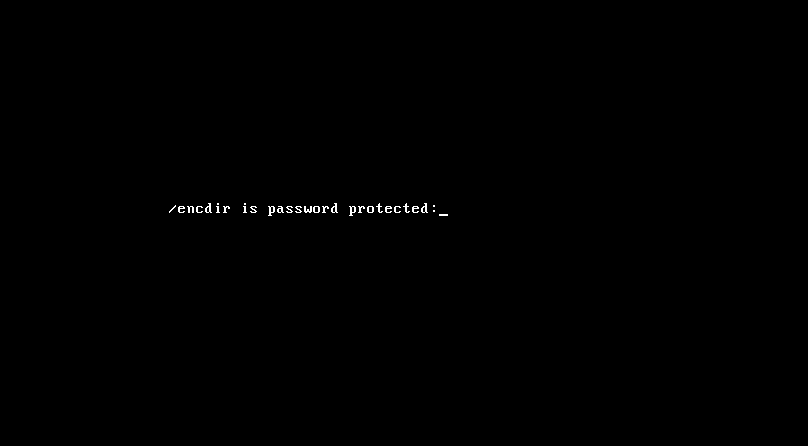
You'll get this prompt when booting up, just enter your passphrase and you are good to go: