Monday, 26 May 2014

Configure Claim Based authentication in Ms Dynamics CRM 2013 using ADFS 3.0 ( Windows Server 2012 R2) part 2

On part 1, I described how to install and configure ADFS on a Windows 2012 R2 server and in this post I will describe how to configure Ms Dynamics CRM 2013 to use claim based authentication.

Pre-Requisite:
  • A wildcard certificate with private key installed.
The first step is to ensure that the Ms Dynamics CRM 2013 website is configured to use HTTPS, so from the IIS Manager (Windows Key + R -> inetmgr):

Add New Binding
Note that IIS will display the certificate friendly name here, you can always click view to ensure that you have the correct certificate here.

Click Ok and then Click Close.
Ms Dynamics CRM 2013 should now be available on HTTPS :)

Now we need to ensure that the service account for the CRM website, i.e. the account that run CRMAppPool, has access to the private key of the wildcard certificate, so from a certificate console  (Windows Key + R -> mmc -> ctrl + M -> Certificates -> Computer Account):


Note how because I'm using Network Service to run the CRMAppPool, that is the account that needs to be able to read the private key.

The next step is to configure Ms Dynamics CRM 2013 for Claim based authentication.
First we need to ensure that the binding type is set to HTTPS.

From the Deployment Manager.


Set Binding Type to HTTPS (There is no need to have the port number)


Make sure you that you click Apply.

Click on Configure Claim Based Authentication and follow the wizard.


It is possible to copy the URL for the relying party by opening the log file and scrolling down to the bottom of the file.
From the ADFS server, start the ADFS Management Console (Server Manager -> Tools -> AD FS Management). We need to ensure that Forms Authentication will be allowed from the internal network. Click on Authentication Policies, then on Edit.


Tick Forms Authentication and click Ok.


 A claim rule is needed to obtain the UPN from the Active Directory domain, so from Claim Provider Trust, select Active Directory and click on Edit Claim Rules..


Click Add Rule


We are now ready to add a relying party trust, so on the Relying Party Trust menu, click on Add Relying Party Trust.


Note how this is the URL the Claims Based authentication wizard tells us to use for configuring a relying trust, it's https://<FQDN>/FederationMetadata/2007-06/FederationMetadata.xml.


Once the wizard completes (just click Next until you get to the end), it is necessary to add three Issuance Transform Rules.

A Pass Through Rule for UPN:


A Pass Through Rule for Primary SID:


A Transform  Rule for Windows Account Name:


At this point I hit another snag. I tried to add a new user with UPN format, e.g. sts@taleb.local and I had this error:
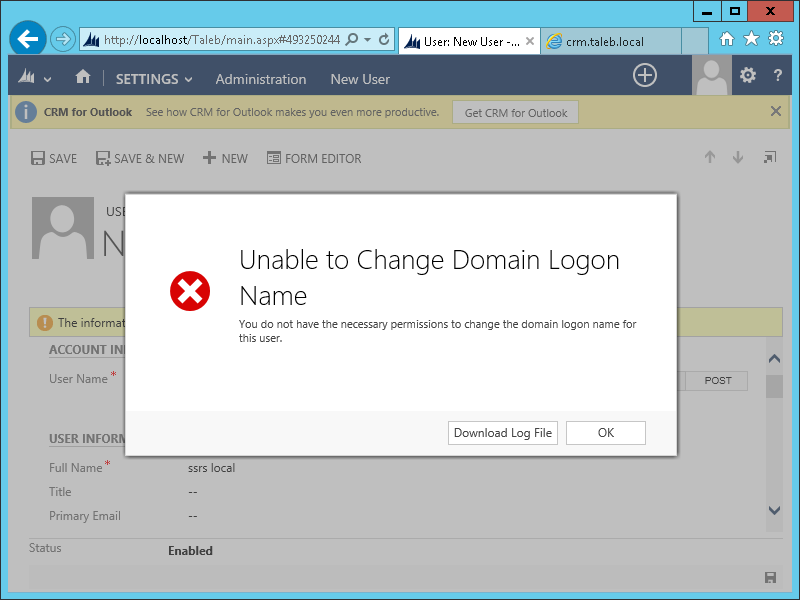
The solution was to turn Auto Group Management Off, which is done via a registry key:

HKEY_LOCAL_MACHINE\SOFTWARE\Microsoft\MSCRM\AutoGroupManagementOff

Default value is 0, i.e. Auto Group Management is On

It can be turned off by setting it to 1.
Having done this, I was able to add a new user in UPN format and successfully sign in:


Configure Claim Based authentication in Ms Dynamics CRM 2013 using ADFS 3.0 ( Windows Server 2012 R2) part 1

I decided to set up a dev environment on my shiny new laptop for those rare occasions when I'm on the road without access to the office servers.

I thought it would be a breeze but there are a few gotchas, so I thought I would document the process here. On part 1 I describe how to install and test ADFS on Windows 2012 R2 and in part 2, I describe how to configure Ms Dynamics CRM 2013 to use claim based authentication.

Pre-Requisites:
  • A working installation of MS Dynamics CRM 2013.
  • A wildcard certificate with private key.
  • A separate server for ADFS.
  • A domain account with domain administrator privileges.
  • Host (A) Record on DNS Server for Federation Server Name.
If you don't have a wildcard certificate, the simplest way to generate one is by using IIS Manager, see this for details.

It is possible to host ADFS on the same server as Dynamics and since ADFS doesn't use IIS anymore (I think, I'm not 100% sure on this), there are no requirements for ADFS to be on the default site, however, you will need to have different host headers for ADFS and MS Dynamics CRM 2013.

Installing ADFS is really simple, just run a PowerShell console with elevated permissions (i.e. Run as Administrator) then run the following commands:
Import-Module ServerManager

Add-WindowsFeature -Name ADFS-Federation

You should see something like this:


I will configure it through the GUI rather than with the PowerShell command as it should make a few things clearer.

On the Server Manager Dashboard click on Notifications and then on configure the federation service on this server.
This will bring up the ADFS Configuration Wizard.


Accept the default and click Next.


If the account you are logged in to the server with has the correct privileges then click Next, otherwise change the account and press Next.


If the wildcard certificate is already installed then there is no need to import it, just selected from the drop down menu.

It's worth stressing here that the Federation Service Name MUST be different from the FQDN of the server. The reason for this is that the following SPN will be set against the service account:
host/Federation Service Name 
In my example it will be:
host/sts1.taleb.local
If this is the same as the FQDN of the server, this SPN will not be set as it's already set against the server account and ADFS will not work correctly.

As I said on the pre-reqs, an A Record is needed for this name in your DNS Server.


Select the Service Account and Click Next.


Accept the default and click Next.


I've skipped the Confirm Overwrite step as I've had to do it agains to take the screenshots. Anyway, at this point you can see the script that can be use to reproduce the GUI installation.


Click Configure and after a short while, you should then see this screen:


Time to ensure that ADFS is working correctly.


 On clicking Sign In, you'll get a prompt like this:

And now you've signed in to ADFS :)

This part has mostly concentrated on ADFS, in part 2 I discuss how to configure Ms Dynamics CRM 2013 for claims based authentication.

Monday, 19 May 2014

Do NOT change signing key for workflow library in MS Dynamics CRM

In my last post I discussed how to build in Jenkins a library signed by a password protected key, I noted that it would be unnecessary to do the whole procedure if password less signing was used, which is what I did last week.

Unfortunately, I did not have the foresight of testing it (hangs head in shame) so today I had to scramble to get back the old key and re-sign the assembly as with the new key I could not update the assembly.

So DO NOT change the signing key of your custom workflow assemblies, same thing applies to plug-ins by the way.

Monday, 12 May 2014

Cannot import the keyfile myfile.pfx - error 'The keyfile may be password protected'

I've been doing some work to use Jenkins for CI and last week when we added our first plug-in (MS Dynamics CRM) to the project, the build broke.

Plug-ins are libraries that need to be strongly signed so I had added a password protected signing key, which is just a PKCS#12 certificate, myfile.pfx.

This is the error I got:
Cannot import the following key file: myfile.pfx. The key file may be password protected. To correct this, try to import the certificate again or manually install the certificate to the Strong Name CSP with the following key container name: VS_KEY_A422D1337C0DEFF95
The solution was quite simple, I installed the key in the Jenkins server:
sn -i myfile.pfx VS_KEY_A422D1337C0DEFF95
sn is the .NET Framework Strong Name Utility and can be found here:


C:\Program Files (x86)\Microsoft SDKs\Windows\v8.0A\bin\NETFX 4.0 Tools\sn.exe

Since I try to keep the build server as clean as possible, I just copied the tool to the server, be sure to copy the 1033 folder too.

Note that if you don't use password protected signing keys this problem will not occur.

Monday, 5 May 2014

Generating Federation Metadata for ADFS WCF Services with FedUtil

Fedutil is probably one of the worst tools ever produced by Microsoft, it is used to generate Federation Metadata for claim authenticated Web services.

I say it's one of the worst tools because it fails rather a lot, which is fine, but sometimes it's tricky to work out why it's failing.

At any rate, Fedutil comes with the WIF SDK and MUST be run with elevated permissions.

The first thing to note is that the certificate in the behaviours section of your web.config, see below, must be installed, with private key in the machine you are running Fedutil from.

Another interesting tidbit is that the Endpoint address needs to be populated and finally, if you are encrypting your appSettings section decrypt it first.

If you have done all the above then it's just a simple case of running:
 fedutil /u <pathtoconfigfile>
This will generate your federation metadata file.

Sample configuration file below
<?xml version="1.0"?>
<configuration>
  <configSections>
    <section name="log4net" type="log4net.Config.Log4NetConfigurationSectionHandler, log4net, Version=1.2.10.0, Culture=neutral, PublicKeyToken=1b44e1d426115821"/>
    <section name="microsoft.identityModel" type="Microsoft.IdentityModel.Configuration.MicrosoftIdentityModelSection, Microsoft.IdentityModel, Version=3.5.0.0, Culture=neutral, PublicKeyToken=31bf3856ad364e35"/>
  </configSections>
  <log4net>
    <appender name="RollingLogFileAppender" type="log4net.Appender.RollingFileAppender">
      <param name="File" value="WorkingHours.log"/>
      <param name="AppendToFile" value="true"/>
      <param name="MaxSizeRollBackups" value="5"/>
      <param name="MaximumFileSize" value="5MB"/>
      <param name="ImmediateFlush" value="true"/>
      <param name="RollingStyle" value="Size"/>
      <param name="StaticLogFileName" value="true"/>
      <layout type="log4net.Layout.PatternLayout">
        <param name="ConversionPattern" value="%d{dd/MM HH:mm:ss:fff}|%-5p|%m%n"/>
      </layout>
    </appender>
    <appender name="TraceAppender" type="log4net.Appender.TraceAppender">
      <layout type="log4net.Layout.PatternLayout">
        <conversionPattern value="%date [%thread] %-5level %logger [%property{NDC}] - %message%newline"/>
        <conversionPattern value="%date %-5level - %message%newline"/>
      </layout>
    </appender>
    <root>
      <!-- The "priority" element specifies the level of information reported that will be logged -->
      <priority value="ALL"/>
      <appender-ref ref="RollingLogFileAppender"/>
      <appender-ref ref="TraceAppender"/>
    </root>
  </log4net>
  <appSettings>
    <add key="ProvisionCacheTimeMilliseconds" value="86400000"/>
    <add key="FederationMetadataLocation" value="https://adfs.dev.local/FederationMetadata/2007-06/FederationMetadata.xml"/>
    <add key="Organisation" value="c4wsandpit"/>
  </appSettings>
  <location path="FederationMetadata">
    <system.web>
      <authorization>
        <allow users="*"/>
      </authorization>
    </system.web>
  </location>
  <system.web>
    <compilation debug="true" targetFramework="4.0">
      <assemblies>
        <add assembly="Microsoft.IdentityModel, Version=3.5.0.0, Culture=neutral, PublicKeyToken=31BF3856AD364E35"/>
      </assemblies>
    </compilation>
  </system.web>
  <system.serviceModel>
    <serviceHostingEnvironment multipleSiteBindingsEnabled="true"/>
    <bindings>
      <customBinding>
        <binding name="customBinding0">
          <security authenticationMode="IssuedTokenOverTransport" messageSecurityVersion="WSSecurity11WSTrust13WSSecureConversation13WSSecurityPolicy12BasicSecurityProfile10">
            <issuedTokenParameters keyType="SymmetricKey"/>
          </security>
          <binaryMessageEncoding/>
          <httpsTransport/>
        </binding>
      </customBinding>
    </bindings>
    <services>
      <service behaviorConfiguration="Service.Service1Behavior" name="Service.WorkingHours">
        <endpoint address="https://crm.dev.local/Services/WorkingHours.svc" binding="customBinding" contract="Service.IWorkingHours" bindingConfiguration="customBinding0"/>
        <endpoint address="mex" binding="mexHttpBinding" contract="IMetadataExchange"/>
      </service>
    </services>
    <behaviors>
      <serviceBehaviors>
        <behavior name="Service.Service1Behavior">
          <federatedServiceHostConfiguration name="Service.WorkingHours"/>
          <serviceMetadata httpGetEnabled="true"/>
          <serviceDebug includeExceptionDetailInFaults="true"/>
          <serviceCredentials>
            <serviceCertificate findValue="AC123A8A913584818F789E3BB3B09D40E12A50BA" storeLocation="LocalMachine" storeName="My" x509FindType="FindByThumbprint"/>
          </serviceCredentials>
        </behavior>
        <behavior name="">
          <serviceMetadata httpGetEnabled="true"/>
          <serviceDebug includeExceptionDetailInFaults="false"/>
        </behavior>
      </serviceBehaviors>
    </behaviors>
    <extensions>
      <behaviorExtensions>
        <add name="federatedServiceHostConfiguration" type="Microsoft.IdentityModel.Configuration.ConfigureServiceHostBehaviorExtensionElement, Microsoft.IdentityModel, Version=3.5.0.0, Culture=neutral, PublicKeyToken=31bf3856ad364e35"/>
      </behaviorExtensions>
    </extensions>
  </system.serviceModel>
  <microsoft.identityModel>
    <service name="Service.WorkingHours">
      <audienceUris>
        <add value="https://crm.dev.local/Services/WorkingHours.svc"/>
      </audienceUris>
      <issuerNameRegistry type="Microsoft.IdentityModel.Tokens.ConfigurationBasedIssuerNameRegistry, Microsoft.IdentityModel, Version=3.5.0.0, Culture=neutral, PublicKeyToken=31bf3856ad364e35">
        <trustedIssuers>
          <add thumbprint="AC123A84E5A209F3FEE5190B44B1797414F68A77B" name="http://adfs.dev.local/adfs/services/trust"/>
        </trustedIssuers>
      </issuerNameRegistry>
      <certificateValidation certificateValidationMode="None"/>
    </service>
  </microsoft.identityModel>
</configuration>


Monday, 28 April 2014

We can all be above average (almost)

I was reading a very interesting article on behavioural psychology today and its effect with relation to Peak oil, climate change etc. I really liked the article, it does a pretty good job of explaining skepticism towards change, it is a must read for certain. I could not help but notice a common enough error with statistics.
To illustrate a point about human optimism particularly with regards to our own abilities, the author quotes research showing how people think that they are better drivers than average (88%) or that professors think that they are better than average (94%), which is obviously impossible as "By definition, almost half of those surveyed are 'overly optimistic'" or in other words 38% of drivers surveyed and 94% of professors must be wrong. Interestingly, it is possible for the surveyed people to be right, although very unlikely and here is why.

The arithmetic mean or average of a distribution is simply the sum of all values of the distribution divided by the number of items in the distribution. Say that we quantify driver ability on a scale of 0 to 1000, where 1000 is the driving skills of Michael Schummacher coupled with the law abiding ethos of a 50 year old German protestant pastor and 0 is the law abiding ethos of an Italian teenager coupled with the driving skills of a 100 year old arthritic, half blind grandmother.

We take a random selection of 10 people and measure their driving skills. These are their results:

  1. 501
  2. 500
  3. 504
  4. 502
  5. 503
  6. 508
  7. 516
  8. 490
  9. 491
  10. 532

The average of the above distribution is 504.7 and thus we have 80% above average. what is going on here, I hear you ask?

Nothing much, just good old fashioned confusion, here is another distribution, this one is the annual salaries of ten friends who have met for a dinner party.
  1. £50100
  2. £50000
  3. £50400
  4. £50200
  5. £50300
  6. £50800
  7. £51600
  8. £49000
  9. £49100
  10. £532000

On this distribution 90% are below average, the average is close to £95k.

The author confused arithmetic mean with the median, which is described in Wikipedia as: a median is described as the numeric value separating the higher half of a sample, a population, or a probability distribution, from the lower half.

As I have shown it is possible to have almost everybody above or below average it is impossible to have more than 50% of the drivers above the median, by definition.

This post was just a little bit of facetiousness, his point still stands even if he conveyed it poorly. People think that they are above average and above the median.


Incidentally, the median for the first distribution is: 503 and for the second: £50300.

Monday, 21 April 2014

Add users from other domains to SharePoint

This post should be part of the brain dump series but I never got around to do actually posting it and I sort of needed it last week, at any rate.

A pretty simple command to allow users from other (trusted) domains to be added to SharePoint site:
stsadm -o setproperty -pn peoplepicker-searchadforests -pv "domain:prod.local,prod\ppSP,<password>" -url "https://sp.dev.local"
In our case the problem was that we could not add users from the prod domain, which we use to log in to our machines to the development environment, which we use, well for development :). 

So we created an account in the Prod domain, ppSP, to allow the AD lookups to take place. There needs to be a domain trust between the domains, if there isn't then, you should be looking at claims authentication.

Monday, 14 April 2014

Calculate MD5 or SHA1 Hash Values from PowerShell

I recently had to rebuild my machine due to a hard disk failure, which meant that I've been downloading quite a bit of stuff from MSDN and since I've been doing working with PowerShell quite a bit, I thought I'd better write a couple of functions to check the hashes of stuff I've downloaded.

MD5
function MD5
{
 param ( [string] $inputFile )
 
 if($inputFile) 
 {
  try 
  {
   $md5 = new-object System.Security.Cryptography.MD5CryptoServiceProvider
   $file = [System.IO.File]::ReadAllBytes($inputFile)
   $hash = $md5.ComputeHash($file)
   $hash | %{write-host $_.tostring("x2") -nonewline}; ""
  }
  catch
  {
   Write-Error $($_.Exception.Message)
  }
 }
 else
 {
  Write-Host "Please enter the full path to the file you want to calculate the hash for"
 }
}

MD5 C:\downloads\linux.iso

SHA1
function SHA1
{
 param ( [string] $inputFile )
 
 if($inputFile) 
 {
  try
  {
   $sha1 = new-object System.Security.Cryptography.Sha1Managed
   $file = [System.IO.File]::OpenRead($inputFile)
   $hash = $sha1.ComputeHash($file)
   $hash | %{write-host $_.tostring("x2") -nonewline}; ""
  }
  catch
  {
   Write-Error $($_.Exception.Message)
  }
  finally
  {
   $file.Close() 
  }
 }
 else
 {
  Write-Host "Please enter the full path to the file you want to calculate the sha1 hash for."
 }
}

SHA1 C:\downloads\windows.iso

See man profile for details on how to add these to your profile so that the functions are available every time PowerShell is started.

Monday, 7 April 2014

Delete Entity in Ms Dynamics CRM 2011/2013 using OData endpoint

This is really part of the brain dump series but haven't really had the time until now.

So to delete an account it would be invoked like this

deleteEntity("AccountSet","ef02108a-0098-e311-81c2-d89d6763fc38'")

var deleteEntity = function(EntitySet, Id)
{
 url = Xrm.Page.context.getClientUrl() + "/XRMServices/2011/OrganizationData.svc/";
 url += EntitySet + "(guid'" + Id + "')"

 delete(url).fail(function(){alert("An error ocurred deleting " + Id)})

}

var delete = function(url)
{
 return $.ajax({
 type:"DELETE", 
 url:url,
 beforeSend:function(x){x.setRequestHeader("Accept","application/json")},
 });
}
Also, jquery needs to be loaded if you are using Dynamics CRM 2011

Monday, 31 March 2014

Maximum Workflow depth in Ms Dynamics CRM 2011/2013 or how according to Microsoft infinite = 8

There is an inbuilt protection against infinite loops in workflows in Dynamics CRM:
This workflow job was canceled because the workflow that started it included an infinite loop. Correct the workflow logic and try again.
Unfortunately the error will be trigger even if there are no infinite loops. This is because the check to determine whether a workflow is in an infinite loop relies on the maximum execution depth, which by default is set to 8.

This means that if you have a chain of workflows/plugins that exceeds this number you will get the above error, which can be confusing as it might leave you trying to work out how are your workflows/plugins, getting into an infinite loop.

The solution is to increment the Maximum Workflow depth, which can be done from PowerShell, like this:
Add-pssnapin Microsoft.crm.powershell -ErrorAction SilentlyContinue 
$workflows = Get-CrmSetting -SettingType WorkflowSettings 
$workflows.MaxDepth = 12 
Set-CrmSetting $workflows
We ended up using 12 as we have long intricate (potential) chains of workflows, I think it never goes higher than 10 but better safe than sorry.