Wednesday, 10 August 2011

Trust me, I'm a Certification Authority.The joy of certificates - Part 3

I thought it would be instructive to install a Certification Authority (CA henceforth) using Windows 2008, I might do a windows 2003 CA if I'm bored one of these days, and show how to run a secure website with client authentication via certificates.

I have a brand new VM with Windows 2008 R8 datacentre edition installed that has been joined to my dev.com domain. Start the Server Manager:


When you select CA web enrollment, you'll get the following popup:


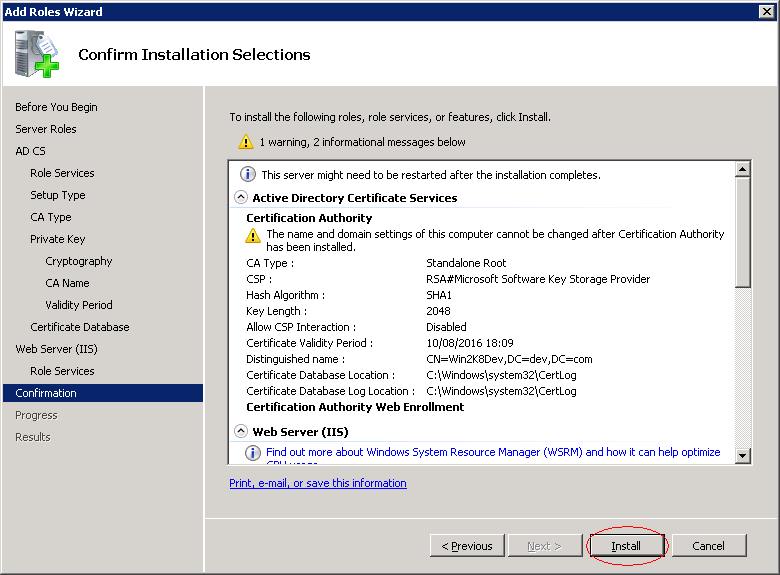
From here on, simply accept the defaults until you get to the last screen:


You can see that the CA certificate has been installed to the Local Computer Trusted CAs:


You can now create certificates by visiting http://localhost/certsrv


That's really it for a CA. In order to make this useful, your other servers will need to trust this CA, which you can do by hitting the Download a CA certificate, certificate chain, or CRL link:

You'll be prompted to save the certificate to a file, I accepted the default certnew.cer. You can now install this certificate in another server so this CA is trusted.

So, logged in to the remote server, double click on certnew.cer


 You can now drag and drop the certificate to the Local Computer Trusted Root Authority Store

Now we can install a certificate from this CA on our web server. See the next post for details on how to do this.

Tuesday, 9 August 2011

Oh, no, it's another certificates post

I came across a puzzling issue yesterday. I was trying to export a certificate as PFX file but I couldn't. The option to export the private key was greyed out and there was a little message informing me that The associated private key cannot be found. Only the certificate can be exported, see screenshot below.


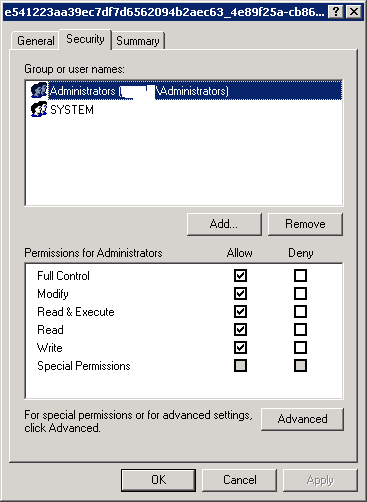
This turns out to be yet another file permissions issue. When you make a certificate request from IIS, the private key is stored as a file in this directory C:\Documents and Settings\All Users\Application Data\Microsoft\Crypto\RSA\MachineKeys and Administrators as well as the System need to have Full Control of these files, if this is not the case you will get the issue above.


To compound the issue, if you have processed the request, rather than simply installed the certificate, it seems that you are past the point of no return and you need a new certificate request, which should be trivial, but in some places it seems to involve loads and loads of paperwork. I've not actually tested this, but read about it here.

It's a self signed world. The joy of certificates - Part 2.

The easiest way to get started with the certificate thingy™ is to use self signed certificates. In essence, a self signed certificate is a certificate that has been signed by the issuer, so there isn't a third party, a CA, ascertaining the certificate's bona fides. The most common use is for testing, but it can also be used in a production environment, although this is unusual, it could be a sensible choice for communication between two units within a company, for instance.

I have used makecert.exe, which is available with Visual Studio or downloading the Windows SDK, I'll try to do this process with openssl, which is a little less unwieldy than Visual Studio :).

The process is also rather involved and laborious, but at some point one has to say enough is enough and get on with it. There is no point in spending three days looking for a solution that will save 5 minutes for every project.

At any rate, here are the steps needed to create a self signed CA, Server and Client Certificate using the makecert tool, install the server certificate for a website and set up client certificate mapping.

1. Create CA. Note that you can change Root to my, if you don't want this Authority to be installed on the local computer Trusted Root Authority store.

makecert -pe -n "CN=SelfSignedCA" -ss Root -sr LocalMachine  -a sha1 -sky signature -r "SelfSignedCA.cer"

2. The certificate should be installed in your Trusted Root Authority store. In order to install it to another server, just follow the instructions on step 5 to export a personal information exchange file and step 10 for instructions on how to install it.

3. Create Server Certificate. Make sure that the CN entry is correct for your server, as otherwise your browser will complain.

makecert -pe -n "CN=servername.dev.com" -ss my -sr LocalMachine -a sha1 -sky exchange -eku 1.3.6.1.5.5.7.3.1  -in "SelfSignedCA" -is Root -ir LocalMachine -sp "Microsoft RSA SChannel Cryptographic Provider" -sy 12 ourserver.cer

4. The ourserver.cer certificate is installed at the same time as it is created:


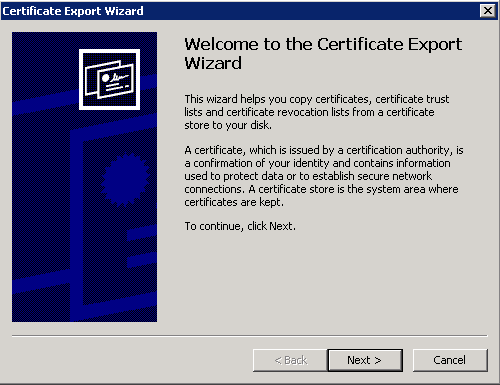
5. Export ourserver certificate as a personal information exchange file (pfx) with private key. From the certificate Console, see this link.

.

6. Install the exported pfx file(servername.pfx) as a website certificate. From the IIS manager console (Run inetmgr)


7. Create client certificate and install it to the personal store of the computer account (Local Machine)

makecert -pe -n "CN=myclient" -ss my -sr LocalMachine -a sha1 -sky exchange -eku 1.3.6.1.5.5.7.3.2 -in "SelfSignedCA" -is Root -ir LocalMachine -sp "Microsoft RSA SChannel Cryptographic Provider" -sy 12 myclient.cer

8. Use client.cer to set up the client mapping.

9. Repeat step 5 to export the client certificate as a personal information exchange file.

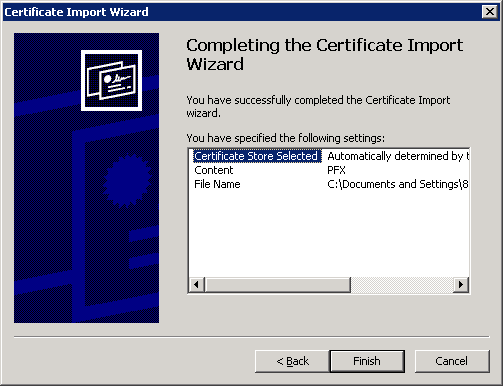
10. Install myclient.pfx to the client computer (Assuming that in step 9 you called it myclient.pfx). Double click on myclient.pfx

Make sure you select yes on this last step

That is it, you should now be able to use client certificates to authenticate to your website. In fact, you can remove any other form of authentication, so that only client certificates are used, like so:

So now, when you try to access the secure website, using IE, you'll see this prompt (if you don't then your client certificate has not been installed properly):


Monday, 1 August 2011

The joy of certificates - Part 1

We have a big project going into Operation Acceptance Testing and one of the things that the project, in its ∞ wisdom, has decided to leave for the last minute is, to get SSL/TLS working. This would not necessarily be a big problem if it wasn't for the fact that there still are a lot of questions about the application's architecture, in particular with respect to SSL. I won't go into details because I don't want to get into rant mode.

At any rate, there is a lot of FUD regarding cryptography, so I thought I would try to clarify things a little bit, more for my own understanding that anybody else's really.

What is a certificate?

A certificate is generally a public key, which in essence is a very long prime number, normally stored in base 64. Some certificate formats, such as pkcs12, also store the private key, which again is a very long prime number.

Certificates also contain metadata, which might tell you what the certificate has been designed for, e.g. Client or Server authentication, key length, expiration dates and so on. The key thing to remember is that the metadata does not really do anything. It's a bit like a label on some food packaging. The label might say that it has expired but you can chose to eat it.

The take away point is that, the way certificates are dealt with is implementation dependent. Let me repeat it for emphasis (in bold this time), the way certificates are dealt with is implementation dependent. Your browser will complain if you visit a SSL/TLS page that is not signed by a known CA, but your own app can choose not to implement a warning, ditto for expiry dates etc...

To repeat myself, a certificate is a very long prime number (public key) and might also contain another long prime number (private key).

Should we HTTPS?

HTTPS is based on SSL/TLS and its main purpose is two-fold:
  1. Ensure the identity of the website being visited.
  2. Ensure that browsing is encrypted.
The first is accomplished by a Certification (or Certificate) Authority that signs the server certificate. There is an implied trust on these CAs. In other words, you are assuming that the CA is trustworthy and will only issue legitimate certificates to its legitimate owners, so that if I say to Verisign or Entrust, Can you please issue a certificate for a domain called www.hsbc.co.uk to me manyrootsofallevil? They'll want to make sure that I actually represent HSBC and I'm not just trying it on, so that I can get unsuspecting HSBC customers to provide me with their login details.

Encryption works by using a secret session key. Diffie-Hellman or a similar scheme is normally used to exchange the keys and arrive at this shared, secret, session key that can then be used to symmetrically encrypt the communication or browsing in this case.  There is more to it that this though, as the client and server need to agree on SSL protocol, compression methods, etc.. The whole process is called a SSL or TLS Handshake and at the end of it we end up with a secure communication between a server and a client.

In other words, HTTPS is based on Public Key Infrastructure.

A bit of theory done, we can now look at how this certificate thingy™ works in practice, after all you know what they say:
In theory, there is no difference between theory and practice. In practice, there is.