Showing posts with label WPF. Show all posts

Wednesday, 7 November 2012

Textbox validation in WPF, yet another way.

In this post I discussed how to do field validation in WPF and this post I will discuss a different way of doing field validation.

I've written a small tool to export solutions from our development environment and check them in to our TFS instance. There is a textbox control that changes the version of the solutions in the server before programmatically exporting the solutions and then checking them in to TFS. The button to do the export and then check in only activates if there are no validation errors.

Here's the xaml for the application (I removed the <Window.Resources> section for clarity) :

The important things to bear in mind are the binding path value for the version TextBox in this case Version, the properties ValidatesOnDataErrors and NotifyOnValidationError and the CommandBinding.
 <Window x:Class="Deployment.ExportSolutions.MainWindow"
         xmlns="http://schemas.microsoft.com/winfx/2006/xaml/presentation"
         xmlns:x="http://schemas.microsoft.com/winfx/2006/xaml"
         xmlns:u="clr-namespace:Deployment.ExportSolutions"
         Title="MainWindow" Height="388" Width="673">
     <Window.CommandBindings>
         <CommandBinding  Command="{x:Static u:MainWindow.ExportCommand }"  CanExecute="Export_CanExecute" />
     </Window.CommandBindings>
     <Grid>
         <Button Content="Change Version and Export Solutions" Height="23" HorizontalAlignment="Left" Margin="330,314,0,0" Name="Change" VerticalAlignment="Top" Width="293" Click="Change_Click" KeyboardNavigation.TabIndex="3" Command="{x:Static u:MainWindow.ExportCommand }" />
         <TextBox Height="23" HorizontalAlignment="Left" Margin="69,8,0,0" Name="Version" VerticalAlignment="Top" Width="190" KeyboardNavigation.TabIndex="0"  Validation.Error="Version_Error">
             <TextBox.Text>
                 <Binding Path="Version" ValidatesOnDataErrors="True" NotifyOnValidationError="True" UpdateSourceTrigger="LostFocus"/>
             </TextBox.Text>
         </TextBox>
         <Label Content="Version" Height="28" HorizontalAlignment="Left" Margin="17,8,0,0" Name="label2" VerticalAlignment="Top" />
         <TextBox Height="266" HorizontalAlignment="Left" Margin="12,42,0,0" Name="messageBox" VerticalAlignment="Top" Width="611"  TextWrapping="Wrap" VerticalScrollBarVisibility="Auto" AcceptsReturn="True" Focusable="False" />
         <Label Content="Use Default Credentials" Height="28" HorizontalAlignment="Left" Margin="330,8,0,0" Name="label1" VerticalAlignment="Top" />
         <CheckBox Height="16" HorizontalAlignment="Left" Margin="459,13,0,0" Name="Credentials" VerticalAlignment="Top"  TabIndex="2"/>
     </Grid>
 </Window>
The command binding is used to enable/disable the button to invoke the process, note how the Button has a command defined.
The properties ValidatesOnDataErrors and NotifyOnValidationError relate to error events.
The binding path value is used to read the textbox value by the validating class. 

Here is the validation class. This class implements the IDataErrorInfo interface, which is what really provides the desired functionality. In this case we are just checking that the value matches a regular expression (removed using directives for clarity):
 
 namespace Deployment.ExportSolutions
 {
     class Validator : IDataErrorInfo
     {        
         public string Version { get; set; }
 
         public string Error
         {
             get { throw new NotImplementedException(); }
         }
 
         public string this[string columnName]
         {
             get
             {
                 string result = null;
 
                 if (columnName == "Version")
                 {
                     if (string.IsNullOrEmpty(Version))
                     {
                         result = "Fill in Version";
                     }
                     else if (!RegexValidator(Version, @"^(\d+\.)(\d+\.)(\d+\.)?(\*|\d+)$"))
                     {
                         result = "Only Valid Version Numbers are accepted. e.g. 0.10.1.1";
                     }
                 }

                 return result;
             }
         }
 
         private bool RegexValidator(string Input, string Pattern)
         {
             bool match = Regex.IsMatch(Input, Pattern);
 
             return match;
         }
     }
 }

Finally the main window file (removed all using directives for clarity). The Arguments struct is there to pass multiple arguments to DoWork event, I'm sure there must be a better way of doing this. 
The DoWork event invokes exports.Exports, which does all the work, not shown for clarity. 
The validationErrors variable keeps track of the number of validation errors and only enables the RoutedCommand if the are none, this in turns allows the button to be clicked.
 
 namespace Deployment.ExportSolutions
 {
    
     public partial class MainWindow : Window
     {
         public static RoutedCommand ExportCommand = new RoutedCommand();
 
         private readonly BackgroundWorker export = new BackgroundWorker();
 
         private Validator validator = new Validator();
 
         int validationErrors = 0;
 
         string version;
         bool isChecked;
 
         public MainWindow()
         {
             InitializeComponent();
 
             this.DataContext = validator;
 
             export.DoWork += (sender, args) =>
             {
                 ExportSolution exports = new ExportSolution(this, messageBox);
 
                 Dispatcher.Invoke((Action)(() => version = Version.Text.Trim()));
                 Dispatcher.Invoke((Action)(() => isChecked = (bool)Credentials.IsChecked));
 
                 exports.Export(version, isChecked);
             };
 
             export.RunWorkerCompleted += new RunWorkerCompletedEventHandler(export_RunWorkerCompleted);
         }
 
         private void export_RunWorkerCompleted(object sender, RunWorkerCompletedEventArgs e)
         {
             Change.IsEnabled = true;
         }
 
         private void Change_Click(object sender, RoutedEventArgs e)
         {
             Change.IsEnabled = false;
 
             export.RunWorkerAsync();
         }
 
         private void Export_CanExecute(object sender, CanExecuteRoutedEventArgs e)
         {
             e.CanExecute = validationErrors == 0;
             e.Handled = true;
         }
 
         private void Version_Error(object sender, ValidationErrorEventArgs e)
         {
             if (e.Action == ValidationErrorEventAction.Added)
             {
                 validationErrors++;
             }
             else
             {
                 validationErrors--;
             }
         }
     }
 
     public struct Arguments
     {
         public string version;
         public bool isChecked;
 
         public Arguments(string Version, bool IsChecked)
         {
             version = Version;
             isChecked = IsChecked;
         }
     }
 }

Wednesday, 5 September 2012

Pass Command Line Arguments/Parameters to a WPF Application

Passing parameters from the command line to a WPF application is not as straightforward as doing the same in WinForms. It's a multiple step process, which I've detailed below.
  1. Edit the app.xaml.cs like this:
      using System;
      using System.Collections.Generic;
      using System.Configuration;
      using System.Data;
      using System.Linq;
      using System.Windows;
      
      namespace Tool
      {
          /// <summary>
          /// Interaction logic for App.xaml
          /// </summary>
          public partial class App : Application
          {
              public static string[] args;
      
              void OnStartUp(object sender, StartupEventArgs e)
              {
                  if (e.Args.Length > 0)
                  {
                      args = e.Args;
                  }
              }
          }
      }
    
  2. Edit the app.xaml like this:
      <Application x:Class="Tool.App"
                   xmlns="http://schemas.microsoft.com/winfx/2006/xaml/presentation"
                   xmlns:x="http://schemas.microsoft.com/winfx/2006/xaml"
                   StartupUri="MainWindow.xaml" Startup="OnStartUp">
          <Application.Resources>
               
          </Application.Resources>
      </Application>
    
  3. Edit MainWindow.xaml.cs like this:
     public MainWindow()
     {
         InitializeComponent();
         
         if (App.args != null && App.args.Length > 0)
         {
           //Do Something here with Command Line Arguments/Parameters
         }
         
     }
    
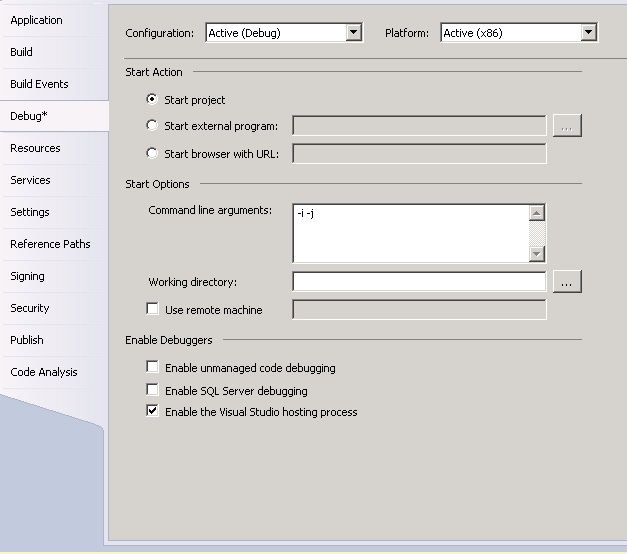
Remember that you can pass paremeters/arguments from visual studio for debugging purposes.
  1. Right Click on Project and Select Properties.
  2. Go to Debug tab.
  3. Set Command Line arguments, see screenshot below.

Monday, 27 August 2012

Update TextBox using AppendText method in real time for WPF Applications

A few days ago I was working on an application that imports several different MS Dynamics CRM 2011 solutions to various environments and I had designed a simple form that contained a big text box which would be updating with progress and a couple of buttons. The problem that I had was that all the progress information would get updated at the end of the import process, which was completely useless as I wanted the progress information to be displayed in real time. 

After a lot of searching I hit upon the issue, which, without going into too much detail is related to threads. In essence, the GUI is waiting for the result of an operation and until that operation finishes it's blocked, which means that nothing is displayed. You probably have seen this when a window becomes non responsive while the application is processing a long(-ish) running process. The way around this problem is by using the Dispatcher.

The code below shows a simple example of how this is accomplished, where Import_Click is the event for a button named Import (xaml not displayed for simplicity).

The key is the WriteMessage method, which uses the dispatcher to invoke the AppendText method for the passed-in MessageBox using a lambda expression, the rest of the code is, hopefully, fairly self-explanatory.

 public partial class MainWindow : Window
 {
     private readonly BackgroundWorker import = new BackgroundWorker();
 
     public MainWindow()
     {
         InitializeComponent();
         import.DoWork += new DoWorkEventHandler(import_DoWork);
     }
     
     private void import_DoWork(object sender, DoWorkEventArgs e)
     {
         Import();
     }
     
     private void Import_Click(object sender, RoutedEventArgs e)
     {
         import.RunWorkerAsync();
     }
     
     public void Import()
     {
             WriteMessage(MessagetTextBox,string.Format("Import started @ {0}.{1}", DateTime.Now,Environment.NewLine));
             
             //DOSTUFFHERE
             
             WriteMessage(MessagetTextBox,string.Format("Import finished @ {0}.{1}", DateTime.Now,Environment.NewLine));
     }
     
     private void WriteMessage(TextBox MessageBox, string Message)
     {
         Dispatcher.Invoke((Action)(() => MessageBox.AppendText(Message)));
     }
 
 }

Wednesday, 12 October 2011

Validation? We don't need no validation, part 2

Following on from my last post, I decided to give validation in WPF a go, with the added limitation that I could only use .NET 3.0 as we have a customer that has an n-1 policy and thus we are stuck with .NET 3.0 with this customer, but I digress. The application has a few textboxes and their content needs to be validated. There are two types of validation needed:
  • Time
  • Integer
For the first one, a Regular Expression will be used and for the second one, type checking will be used, in other words, any non-integer value will trigger a validation error. A class called, Parameters, that implements the INotifyPropertyChanged, is used to hold all the textbox values. This is the class definition:

   1 using System;
   2 using System.Collections.Generic;
   3 using System.Text;
   4 using System.ComponentModel;
   5 using System.Windows.Controls;
   6 using System.Globalization;
   7 using System.Text.RegularExpressions;
   8 
   9 namespace ConfigurationTool
  10 {
  11     public class Parameters : INotifyPropertyChanged 
  12     {
  13         public event PropertyChangedEventHandler PropertyChanged;
  14 
  15         string starttime;
  16         int retryinterval;
  17         int callretention;
  18         int nofservers;
  19         int threadsperserver;
  20 
  21         public Parameters() { }
  22 
  23         public string startTime          
  24         {
  25             get { return starttime; }
  26             set
  27             {
  28                starttime = value;
  29                 OnPropertyChanged("startTime");
  30             }
  31         }
  32 
  33         public int retryInterval
  34         {
  35             get { return retryinterval; }
  36             set
  37             {
  38                 retryinterval = value;
  39                 OnPropertyChanged("retryInterval");
  40             }
  41         }
  42 
  43         public int callRetention
  44         {
  45             get { return callretention; }
  46             set
  47             {
  48                 callretention= value;
  49                 OnPropertyChanged("callRetention");
  50             }
  51         }
  52 
  53         public int nofServers
  54         {
  55             get { return nofservers; }
  56             set
  57             {
  58                 nofservers = value;
  59                 OnPropertyChanged("nofServers");
  60             }
  61         }
  62 
  63         public int threadsperServers
  64         {
  65             get { return threadsperserver; }
  66             set
  67             {
  68                 threadsperserver = value;
  69                 OnPropertyChanged("threadsperServers");
  70             }
  71         }
  72       
  73 
  74         protected void OnPropertyChanged(string name)
  75         {
  76 
  77             PropertyChangedEventHandler handler = PropertyChanged;
  78 
  79             if (handler != null)
  80             {
  81 
  82                 handler(this, new PropertyChangedEventArgs(name));
  83 
  84             }
  85 
  86         }      
  87 
  88 
  89     }
  90 
  91 }

Note that starttime is a string, I guess TimeSpan object could have used to perhaps used type checking but I've just thought about it now, while writing this up.

In order to do the regex validation, the following class is used (thanks to stackoverflow).

   1 using System;
   2 using System.Collections.Generic;
   3 using System.Text;
   4 using System.Windows.Controls;
   5 using System.Globalization;
   6 using System.Text.RegularExpressions;
   7 
   8 namespace ConfigurationTool
   9 {
  10     class RegexValidator : ValidationRule
  11     {
  12          string pattern;
  13          string errormessage;
  14          Regex regex;
  15          
  16         public string Pattern
  17         {
  18             get { return pattern; }
  19             set
  20             {
  21                 pattern = value;
  22                 regex = new Regex(pattern, RegexOptions.IgnoreCase);
  23             }
  24         }
  25 
  26         public string errorMessage
  27         {
  28             get { return errormessage; }
  29             set
  30             {
  31                 errormessage= value;                
  32             }
  33         }
  34 
  35         public RegexValidator()
  36         {
  37 
  38         }
  39 
  40         public override ValidationResult Validate(object value, CultureInfo cultureInfo)
  41         {           
  42             try
  43             {
  44                 if (regex != null)
  45                 {
  46                     if (!regex.IsMatch(value.ToString()))
  47                     {
  48                         throw new FormatException();
  49                     }
  50                     else
  51                     {
  52                         return ValidationResult.ValidResult;
  53                     } 
  54                 }
  55 
  56                 return new ValidationResult(false, errorMessage);
  57             }
  58             catch (FormatException)
  59             {
  60                 return new ValidationResult(false, errorMessage);
  61             }
  62 
  63         }
  64     }
  65 }

Using this class any regular expression can be validated. All that is required is to hook it up in the xaml to a property and it will be validated.  At any rate, below is the (edited) xaml for this application, with an example of using regular expression validation:

   1 <Window x:Class="ConfigurationTool.MainWindow"
   2         xmlns="http://schemas.microsoft.com/winfx/2006/xaml/presentation"
   3         xmlns:x="http://schemas.microsoft.com/winfx/2006/xaml"
   4         xmlns:sys="clr-namespace:System;assembly=mscorlib"
   5         xmlns:u="clr-namespace:ConfigurationTool"
   6         Title="Configuration Tool" Height="465" Width="565" Icon="/ConfigurationTool;component/Images/maint.ico">
   7 
   8  <Window.Resources>
   9      <u:Parameters x:Key="Pams"/>
  10  </Window.Resources>
  11  
  12  <Grid>
  13     <TextBox Height="23" HorizontalAlignment="Left" Margin="371,72,0,0" Name="RunningTimetextBox" VerticalAlignment="Top" Width="144">
  14         <TextBox.Text>
  15             <Binding Path="startTime" UpdateSourceTrigger="PropertyChanged" Source="{StaticResource Pams}">
  16                 <Binding.ValidationRules>
  17                     <u:RegexValidator Pattern="^([0-1][0-9]|2[0-3]):[0-5][0-9]$" errorMessage="Enter a Valid Time"/>
  18                 </Binding.ValidationRules>
  19             </Binding>
  20         </TextBox.Text>
  21     </TextBox>
  22     <Label Content="Retry Interval (in minutes)" Height="28" HorizontalAlignment="Left" Margin="26,102,0,0" Name="label4" VerticalAlignment="Top" />
  23     <TextBox Height="23" HorizontalAlignment="Left" Margin="371,101,0,0" Name="RetryIntervaltextBox" VerticalAlignment="Top" Width="144" >
  24         <TextBox.Text>
  25             <Binding Path="retryInterval" UpdateSourceTrigger="PropertyChanged" Source="{StaticResource Pams}">
  26                 <Binding.ValidationRules>
  27                     <ExceptionValidationRule/>
  28                 </Binding.ValidationRules>
  29             </Binding>
  30         </TextBox.Text>            
  31     </TextBox>
  32   </Grid>
  33 </Window>

Things to note with the xaml are:
  • Windows resources defines the parameters class
  • This class is hooked up to all textboxes via Source attribute
  • The regex validation class is also hooked up to any textbox as needed.
We can compare the above with a sample code used to validate a textbox in a winforms application:

   1 private void RunningTimetextBox_Validating(object sender, CancelEventArgs e)
   2 {
   3     try
   4     {    //Ensure that the Start time is valid
   5         if (!RunningTimetextBox.Text.Trim().Equals(string.Empty))
   6         {
   7             if (!Regex.IsMatch(RunningTimetextBox.Text.Trim(), Constants.timeRegex))
   8             {
   9                 e.Cancel = true;
  10 
  11                 MessageBox.Show(Constants.errValMsg, "Error", MessageBoxButtons.OK);
  12             } 
  13         }
  14 
  15     }
  16     catch (Exception ex)
  17     {
  18         MessageBox.Show(string.Format(Constants.errMsg, ex.ToString()), "Error", MessageBoxButtons.OK);
  19     }
  20 
  21 }
   
The code is from a similar application and while not perfect it takes about one minute to write, yes it might not be as pretty as WPF, but prettification is hardly at the top of the list for most enterprise applications. It's a nice to have not a killer feature.

Saturday, 1 October 2011

Validation? We don't need no validation.

I decided to give WPF a go last week, after all, it's only been out for five years. I wrote a small app that writes to the configuration file of a windows service. This app ensures that the fields are validated and also that the app.config file is well formed (we've had a few instances were an web.config file has been edited manually and the values placed after the configuration closing tags) or at least that was the idea.

Anyway, in the old days of winforms apps, in order to validate a textbox all one had to do was implement the Validating event. If it passed validation, the program would continue otherwise the event would be cancelled and focus stayed with the same textbox.

Imagine my surprise when the validating event wasn't there for a WPF textbox. I thought that it must be called something else, i.e. there would be an event that would have similar functionality, but alas there isn't. It is possible to use the previewtextinput event to prevent text being input, e.g. letters in a numerical only field, but there are limitations to this approach, as it only validates one character.

This should be another, why Microsoft why post? There are a few solutions but they involve writing quite a bit of code, which is fine, but it seems like a step backwards to me.