Showing posts with label CA. Show all posts

Monday, 5 September 2011

Trust me, I'm a CA - Part 4. The joy of certificates - Part 6

This is a follow on post from this post.

I have finally managed to get this working. The issue is better explained with pictures, for reasons that soon will become obvious:

Non-Working:

Working:

You can see how the OCSP is now active and there is a url for it, see this link on how to set this up. The thing I don't quite understand is that before it was active, client certificates would not work because they could not get to the CA to confirm whether they were revoked, and thus IIS refused to use them but once I configured it even with the CA web server down, it works. I've restored the CA back to pre-OCSP and it still works.

I'm afraid that this post poses more questions that answers, but that is life sometimes I guess, when one is learning. More reading about CAs here I come.

Tuesday, 16 August 2011

Trust me, I'm a CA - Part 3. The joy of certificates - Part 5

This is a follow on post from this post.

So thus far, we have a CA and a secure web site, so the missing piece in the puzzle is the client certificate, thus let's dive right in, except that: It turns out that in order to create a client certificates the CA website must be running securely.

You can use the procedure described in my previous post to generate a new server certificate and then you can install it as follows: Start|Run|inetmgr


Although the GUI has changed, the procedure is the pretty much the same as described in my previous post, for both the request and then the completion of the request. Once completed, you'll have a new server certificate installed:

Now go the default website on IIS Manager and add a new Binding:


Note that I have selected the same certificate that I created before. We can now navigate to the CA website using ssl.

Note, that if you use https://localhost/certsrv you'll see a warning unless you specifically created the certificate for localhost, but if you don't you'll need to change you trusted sites settings so that activex controls can run.
We can now request a client certificate.


You'll get the following prompt, just press yes to continue:


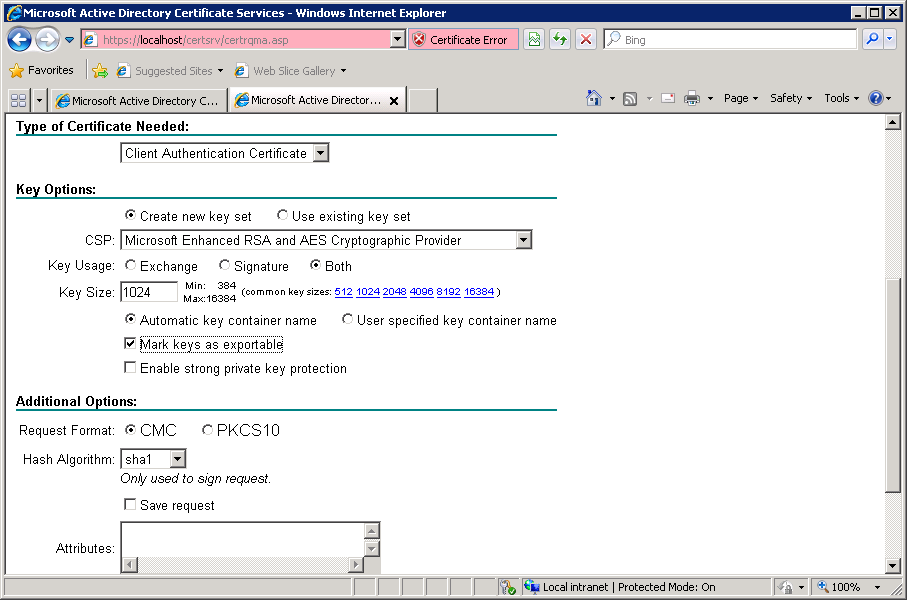
Fill in the identity information, not shown, and then make sure that you tick mark keys as exportable and press submit.


You'll get the usual message about the request being pending, see my previous post for details on how to deal with this.


Once you have issued the certificate you'll need to install it, from the main CA webpage, go to View the Status of Pending Certificate Request:


Once the certificate has been installed, you'll need to export it, see this post for instructions. The one thing left to do is to export the public key, which I suggest you do on the web server. All you need to do is select (this will probably be your only option from the web server) to set up client certificate mapping, which you can do by following the steps in this post. One problem I found is that: it doesn't work, I get the following error:


In my case, it's failing to determine the revocation status, which means that I probably messed up somewhere. Irritation. See this post for a solution to this issue

Wednesday, 10 August 2011

Trust me, I'm a Certification Authority.The joy of certificates - Part 3

I thought it would be instructive to install a Certification Authority (CA henceforth) using Windows 2008, I might do a windows 2003 CA if I'm bored one of these days, and show how to run a secure website with client authentication via certificates.

I have a brand new VM with Windows 2008 R8 datacentre edition installed that has been joined to my dev.com domain. Start the Server Manager:


When you select CA web enrollment, you'll get the following popup:


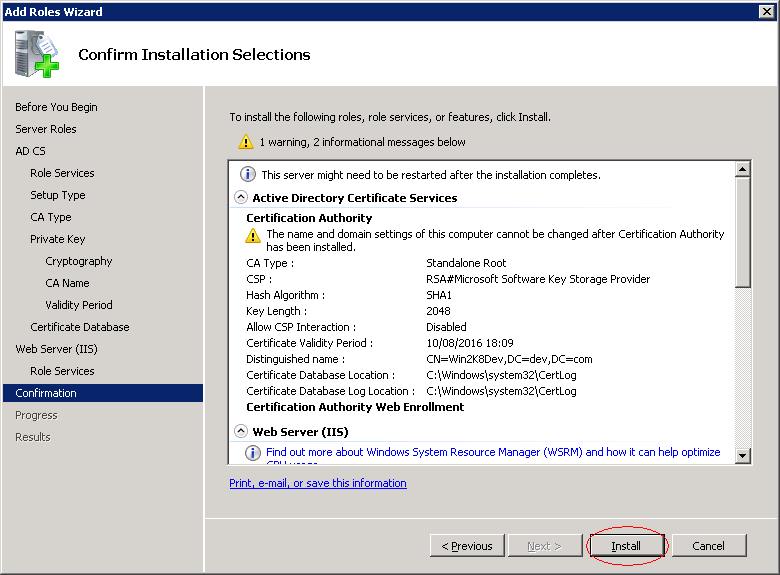
From here on, simply accept the defaults until you get to the last screen:


You can see that the CA certificate has been installed to the Local Computer Trusted CAs:


You can now create certificates by visiting http://localhost/certsrv


That's really it for a CA. In order to make this useful, your other servers will need to trust this CA, which you can do by hitting the Download a CA certificate, certificate chain, or CRL link:

You'll be prompted to save the certificate to a file, I accepted the default certnew.cer. You can now install this certificate in another server so this CA is trusted.

So, logged in to the remote server, double click on certnew.cer


 You can now drag and drop the certificate to the Local Computer Trusted Root Authority Store

Now we can install a certificate from this CA on our web server. See the next post for details on how to do this.